


SSL Installation Guide (Certbot) for VPS
Before starting, make sure that the firewall on your VPS allows traffic on ports 80 and 443. If not, please contact DTI to request permission and have the firewall access opened.
1. Access Your VPS
a. Using Terminal (Linux & macOS) Open a terminal and run the following command:

Replace username with your VPS username and ip_address with your VPS IP address.
b. Using PuTTY (Windows) Open PuTTY and enter your VPS access details.
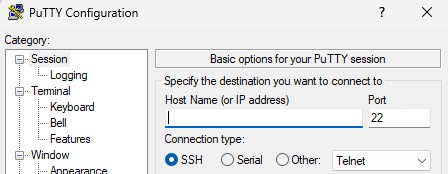
Make sure the entered data—Host Name, Port, Username, and Password—matches your VPS credentials.
2. Install Certbot
a. Update the package list
Before installing Certbot, update your system’s package list by running:

b. Install Certbot and the Apache plugin
Certbot provides plugins to automate the creation and management of SSL certificates. Install Certbot and the Apache plugin with the following command:

This will install Certbot along with the required plugin to integrate Certbot with Apache.
3. Obtain an SSL Certificate
a. Run Certbot
To obtain an SSL certificate from Let’s Encrypt, run:

Follow the on-screen instructions:
- Enter your email address to receive renewal and security notifications.
- Agree to the Let’s Encrypt terms and conditions.
- Select the domain name you want to secure. Certbot will automatically detect domains configured in your Apache configuration files.
4. Automate Certificate Renewal
a. Verify automatic renewal
Let’s Encrypt SSL certificates are valid for 90 days, so setting up automatic renewal is crucial. Certbot automatically creates a cron job that runs "certbot renew". You can verify this by running: . .

This command simulates the renewal process to ensure automatic renewal is working correctly.
5. Verify the Installation
a. Check SSL status:
Open your browser and access your website using https://, for example: . .
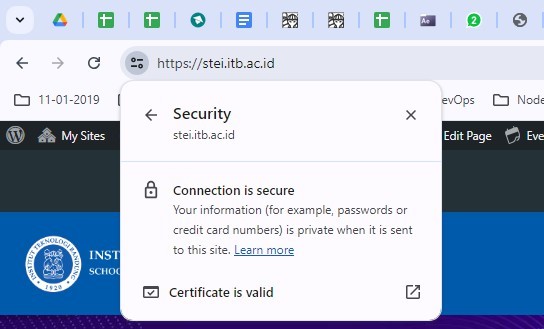
If the SSL certificate is installed correctly, you will see a padlock icon and a message indicating that the connection is secure.
6. Obtain SSL Certificates for Domains and Subdomains
a. If you have more than one subdomain, run Certbot with specific domain and subdomain options:

When running this command, follow the on-screen instructions:
- Enter your email address to receive renewal and security notifications.
- Agree to the Let’s Encrypt terms and conditions.
- Certbot will automatically configure Apache to redirect HTTP traffic to HTTPS.
 English
  Indonesian